

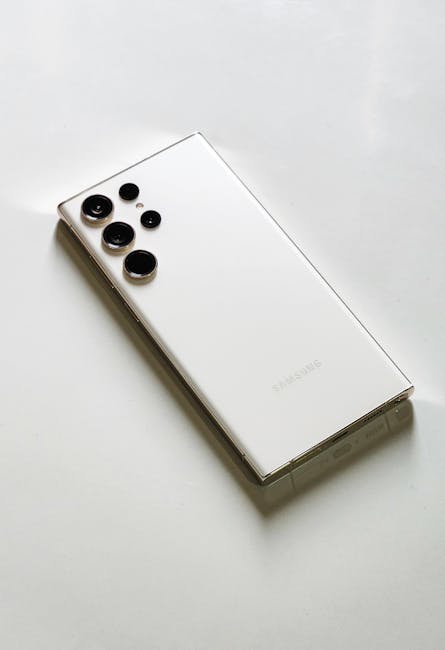
Did you know your Samsung Galaxy phone has a secret Wi-Fi menu packed with incredibly useful options? Most users are completely unaware of this powerful hidden feature, which can significantly improve your internet experience, boost your connection speed, and even help you troubleshoot network issues. Get ready to dive into the world of advanced Wi-Fi settings and unlock your Samsung’s true potential!
Discover the Secret Samsung Wi-Fi Menu
This hidden menu, often referred to as the Wi-Fi Control Panel or Wi-Fi Advanced Settings, is not something you’ll find by simply tapping the Wi-Fi icon. It requires a specific sequence to access, but once you’re in, a whole new level of control is at your fingertips.
How to Access the Secret Wi-Fi Menu:
The exact method might vary slightly between different Android versions and Samsung One UI iterations, but the most common way is as follows:
- Go to your phone’s Settings app.
- Tap on Connections.
- Tap on Wi-Fi.
- Tap the three vertical dots (More options) in the top right corner.
- Select Wi-Fi Control Panel or Advanced Settings (the exact wording may differ).
What Amazing Features Await You?
Once you’ve navigated your way into this clandestine corner of your Samsung phone, you’ll find a treasure trove of settings designed to optimize your Wi-Fi experience:
- Wi-Fi MAC Address: While not strictly an optimization, knowing your MAC address can be useful for network administrators or for setting up specific network access rules.
- Wi-Fi Frequency Band: This allows you to manually select whether your phone connects to the 2.4GHz or 5GHz band. The 5GHz band generally offers faster speeds but has a shorter range, while 2.4GHz has a longer range but can be more prone to interference. Choosing the right band for your environment can make a big difference.
- Wi-Fi Scan Throttling: This setting controls how aggressively your phone scans for available Wi-Fi networks. Turning it off might lead to more frequent scans and potentially quicker detection of new networks, but it could also consume more battery.
- Wi-Fi Controller / Wi-Fi Direct: This allows you to connect directly to other devices without needing a router, which is fantastic for sharing files or playing games.
- Network Usage History: See which apps have been using your Wi-Fi data, helping you identify any unexpected data hogs.
- IP address settings: For advanced users, you can manually configure your IP address, subnet mask, and gateway if needed.
- Static IP: This option lets you assign a permanent IP address to your phone when connected to a specific network, which is often useful for devices that need consistent network recognition.
Why is This Menu a Game-Changer?
Understanding and utilizing these settings can lead to:
- Faster Speeds: By manually selecting the optimal Wi-Fi band, you can often achieve a more stable and faster connection.
- Improved Stability: Sometimes, a simple refresh or adjustment of a setting in this menu can resolve connectivity issues.
- Enhanced Security: While not directly a security feature, understanding network settings can contribute to a more aware approach to your online presence.
- Better Troubleshooting: If your Wi-Fi is acting up, this menu provides the tools to diagnose the problem more effectively.
A Word of Caution
While these settings are powerful, it’s important to exercise caution. Changing some advanced settings without understanding their implications could inadvertently disrupt your network connectivity. If you’re unsure about a particular option, it’s best to leave it at its default setting or do thorough research before making any changes.
So, the next time you’re experiencing Wi-Fi woes or simply want to ensure you’re getting the best possible connection from your Samsung Galaxy, remember to explore this secret menu. Your digital life will thank you for it!