


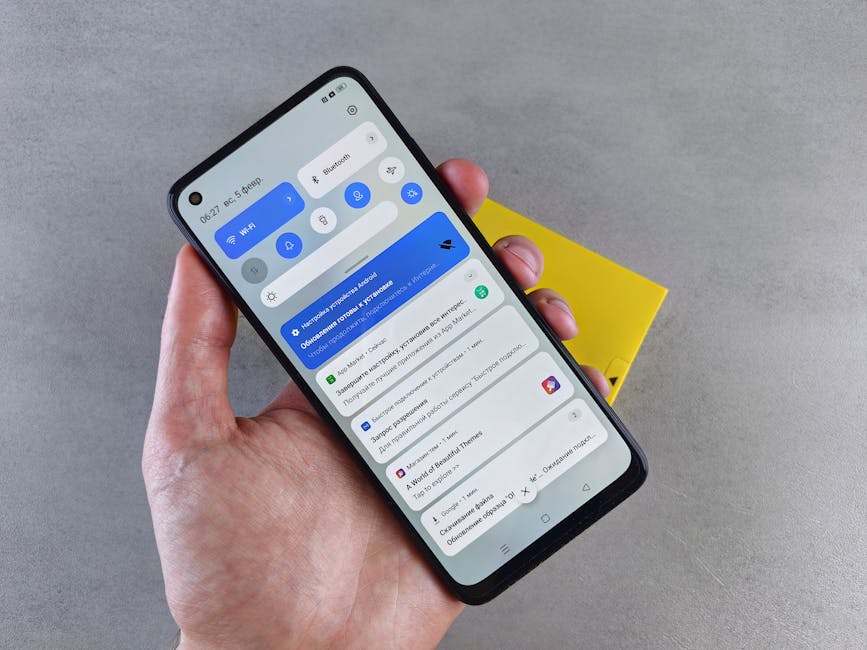
Are you a Samsung Galaxy user who sometimes struggles with sluggish Wi-Fi, dropped connections, or just wishes for more control over your network? What if we told you there’s a hidden, powerful Wi-Fi menu tucked away in your phone, just waiting to be unleashed? That’s right – your Samsung Galaxy device holds a secret that can help you troubleshoot issues, optimize performance, and gain a deeper understanding of your wireless world.
This isn’t just about turning Wi-Fi on or off. This ‘secret’ menu, often referred to as Wi-Fi Developer Options or Enhanced Wi-Fi settings, provides granular control usually reserved for engineers or advanced users. But don’t worry, we’ll guide you through how to access it and what useful features you can find.
What Is This Secret Wi-Fi Menu?
Much like the hidden ‘Developer Options’ for your Android system, Samsung Galaxy phones also have an equivalent for their Wi-Fi functionality. It’s a suite of advanced configurations and diagnostic tools designed to help fine-tune your Wi-Fi experience, identify network problems, and even enhance security.
While not every option will be relevant to the average user, knowing how to access it can be a lifesaver for troubleshooting or when you just want to get the absolute best out of your home or office network.
How to Access Samsung’s Secret Wi-Fi Menu
Unlocking this hidden gem is surprisingly simple, though it requires a few taps in just the right place:
- Open your phone’s Settings app.
- Tap on Connections.
- Tap on Wi-Fi.
- On the Wi-Fi screen, tap the three vertical dots (More options) in the top right corner, then select Intelligent Wi-Fi (or Wi-Fi Intelligent Assistant). Some models might have this directly accessible from the main Wi-Fi screen by tapping a gear icon or ‘Advanced’.
- Once you’re on the Intelligent Wi-Fi screen, locate the text or version number for ‘Intelligent Wi-Fi’.
- Rapidly tap on the ‘Intelligent Wi-Fi’ text (or its version number) 5-7 times. You might see a small toast message pop up saying ‘Wi-Fi developer options have been enabled’ or similar.
- A new option, usually titled ‘Wi-Fi Developer Options’ or ‘Wi-Fi enhanced settings’, should now appear on that screen. Tap on it to enter the secret menu!
Key Features and Why They Matter
Once inside, you’ll find a range of options. Here are some of the most useful ones:
- Verbose Logging: This is a powerful diagnostic tool. Enabling it generates highly detailed logs of your Wi-Fi activity, which can be invaluable for pinpointing the exact cause of connection issues, slow speeds, or frequent disconnections. While you might not understand all the data, it’s something a network professional could use.
- Roaming Aggressiveness: Ever notice your phone clinging to a weak Wi-Fi signal when a stronger one is available? This setting allows you to adjust how ‘aggressively’ your phone searches for and switches to a better access point. Increasing aggressiveness can lead to smoother transitions and stronger signals as you move around.
- Wi-Fi Power Save Mode: While often managed by the system, this option can sometimes be tweaked here. Disabling it might offer a slight performance boost in some scenarios, but be mindful of potential battery drain.
- Scan Throttling: Android sometimes limits how frequently your phone scans for new Wi-Fi networks to save battery. Disabling scan throttling can make your phone discover and connect to new networks faster, which can be useful in busy environments or when troubleshooting.
- Passpoint/Hotspot 2.0 Settings: For users in enterprise or public Wi-Fi scenarios that support these advanced authentication methods, this menu can offer deeper configuration options for seamless and secure roaming between hotspots.
A Word of Caution
While these options offer great control, remember that they are advanced settings. Changing them without understanding their implications could potentially lead to unexpected Wi-Fi behavior or even connectivity issues. It’s always a good idea to note down default settings before making changes, so you can revert if needed.
Unleash Your Wi-Fi’s Full Potential!
Now that you know the secret, go ahead and explore your Samsung Galaxy’s hidden Wi-Fi capabilities! Whether you’re a tech enthusiast or just someone looking to troubleshoot a stubborn connection, this secret menu offers a new level of control over your wireless world. Happy exploring!